

losLab Word to PDF Converter is a free Windows utility for converting RTF, DOC, and DOCX files to PDF from either a graphical interface or repeatable command-line jobs.
Use it for local document conversion, folder-based batch processing, and simple automation where each source document should produce a matching PDF file.
Download the latest Word to PDF Converter package:
Download Word to PDF Converter (Freeware)
Key Features
- Multiple input formats: Convert RTF, DOC, and DOCX files to PDF.
- Command-line interface: Run unattended conversions for folders, subfolders, or file patterns.
- Graphical interface: Select input and output folders without writing a command.
- PDF metadata: Set author, producer, title, subject, and keywords.
- Output control: Choose overwrite behavior or let the converter rename new files when a PDF already exists.
Command Line Usage
The command-line version can convert all supported files in the current directory and subdirectories when run without arguments. You can also pass a directory or file pattern to process only matching files.
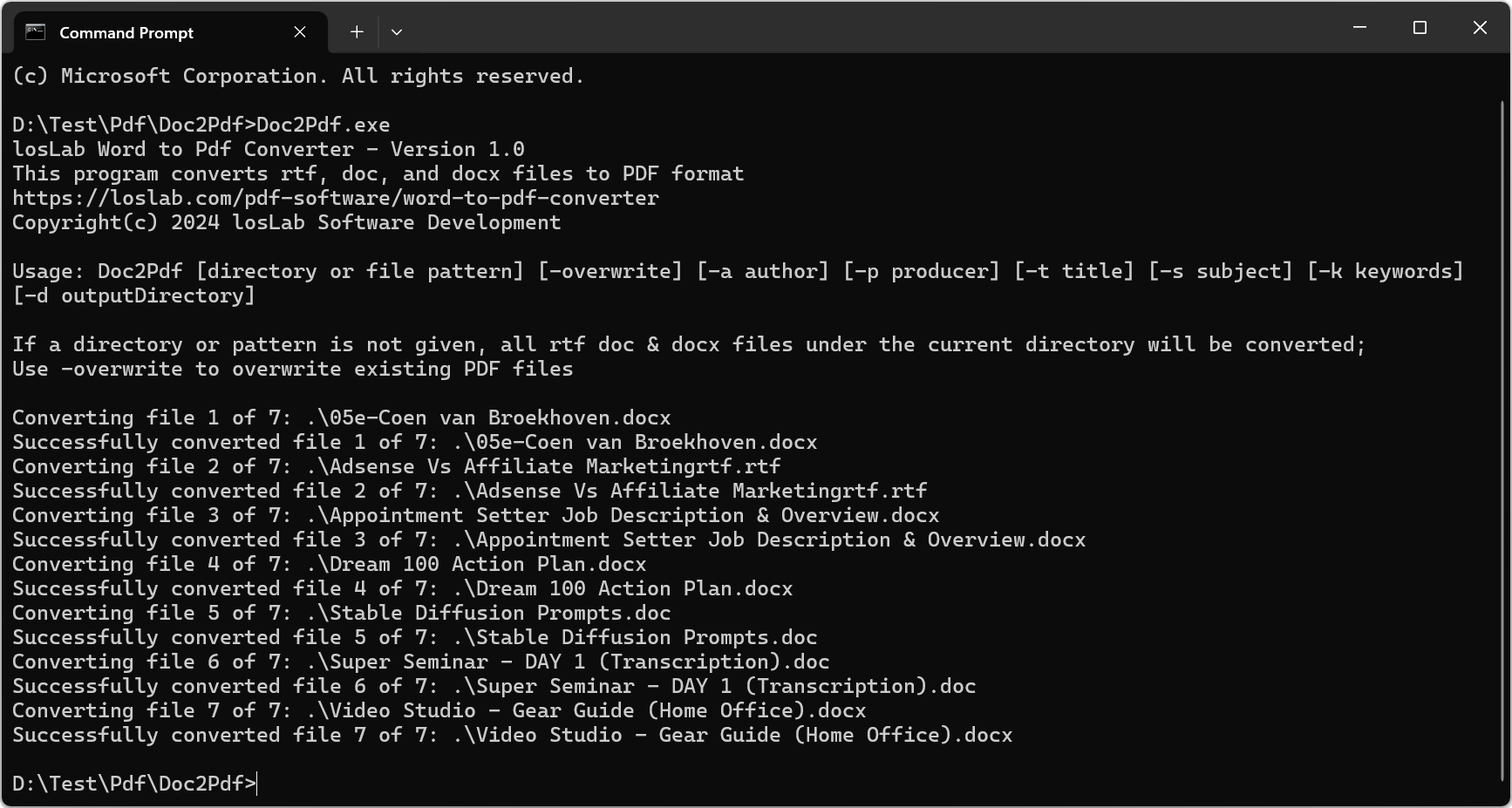
Usage Example:
Doc2Pdf [directory or file pattern] [-overwrite] [-a author] [-p producer] [-t title] [-s subject] [-k keywords] [-d outputDirectory]
Options:
-overwrite: Overwrite existing PDF files.-a author: Set the PDF author.-p producer: Set the PDF producer.-t title: Set the PDF title.-s subject: Set the PDF subject.-k keywords: Set the PDF keywords.-d outputDirectory: Specify the directory for the output PDF files. If the directory does not exist, it will be created.
Example commands:
- Convert all files in the Documents directory:
Doc2Pdf C:\Users\YourName\Documents
- Convert files matching a pattern:
Doc2Pdf C:\Users\YourName\Documents\Report*.* -a "Your Name" -p "Your Company" -t "Monthly Report" -s "Finance" -k "report, finance, 2024" -d C:\Users\YourName\PDFs
GUI Usage
The GUI provides the same core workflow for users who prefer a visual interface.
Steps to use the GUI:
- Open the program: Launch Word to PDF Converter from your desktop.
- Select the input directory: Click the Browse button and choose the folder that contains the files to convert.
- Select the output directory: Click Browse next to the output directory field. The program creates the directory when needed.
- Set conversion options: Enable Overwrite when existing PDF files should be replaced.
- Convert files: Click Convert to start the conversion process.
- Set PDF properties: Use File > Document Settings to set author, producer, title, subject, and keywords.
- Open help: Use the Help menu for more information.
Output Management
The program generates a PDF file for each RTF, DOC, or DOCX file it processes. The PDF file will be saved in the specified output directory or the same directory as the original file. If a file with the same name already exists and the -overwrite option is not specified, the program will append a timestamp to the new file’s name.
Timestamp Format: MMddHHmmss
Example: If the file Report.pdf already exists, the new file will be named Report_0615083021.pdf, where 0615083021 represents the date and time when the file was generated.
Download Word to PDF Converter when you need a lightweight local tool for repeatable Word document conversion.
Discover more from Delphi PDF Component & Spreadsheet Development
Subscribe to product updates
Subscribe to get the latest posts sent to your email.